CRM data migration without data loss
CRM data migration without data loss
Switch from Salesforce, Pipedrive, or HubSpot to your new CRM. Oneprofile maps fields, migrates contacts and deals, and keeps both systems in sync during the transition.
No credit card required
Free 100k syncs every month
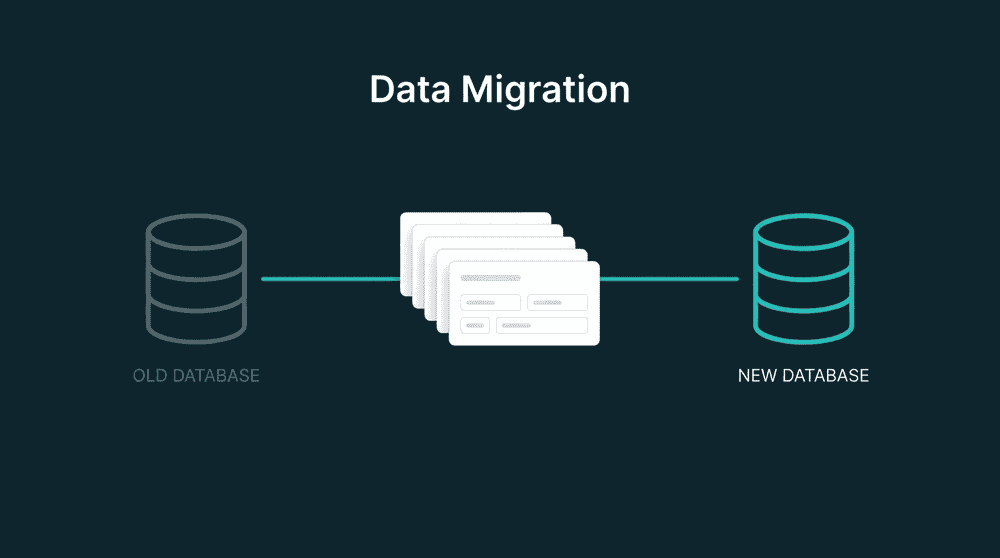
What goes wrong during CRM data migration
Most CRM migrations rely on CSV exports, import wizards, and manual field mapping. Records get lost, custom fields disappear, and the old and new systems fall out of sync within days.

CSV exports strip relationships and history
Export contacts from Salesforce, import to HubSpot, and the deal associations are gone. Notes, activity logs, and linked companies don't survive the CSV round-trip. You end up with flat records.

Custom fields vanish in the new CRM
Your old CRM has custom fields for lead_score, contract_value, and renewal_date. The import wizard skips what it can't match. Nobody notices until a rep finds empty fields weeks later.

Old and new CRM drift apart after migration day
You migrate on Friday, switch Monday, and by Wednesday the old CRM has new contacts from ongoing campaigns. Nobody re-migrated them. Now two systems have different data with no way to reconcile.
Connect both CRMs as source and destination
Authenticate your old and new CRM with API keys. Oneprofile treats each CRM as both a source and destination. No CSV exports, no import wizards, no third-party migration tools.
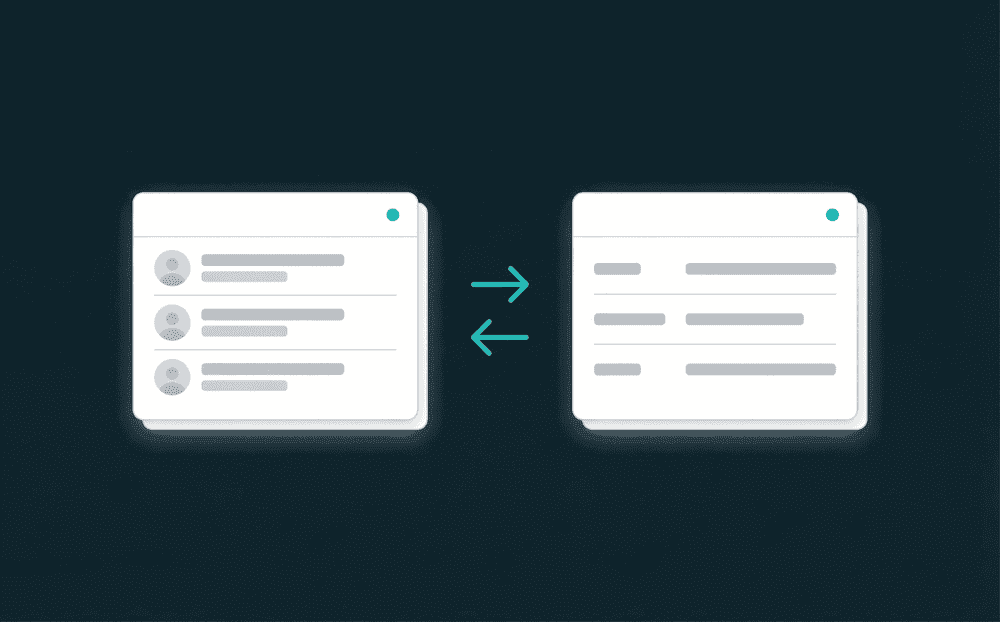
Connect both CRMs as source and destination
Authenticate your old and new CRM with API keys. Oneprofile treats each CRM as both a source and destination. No CSV exports, no import wizards, no third-party migration tools.

Backfill all historical records on day one
The first sync processes every contact, company, and deal from your old CRM. Your new CRM starts with complete data from day one, not a partial CSV import with missing fields.

Run both CRMs in parallel during transition
Keep both CRMs synced while your team ramps on the new one. Records created in either system show up in both. When the cutover is complete, disconnect the old CRM.

Every failed record is recoverable
If a record fails to migrate (field type mismatch, rate limit, missing required value), it's captured with full error context. Fix the mapping, reprocess, and the record syncs.
Popular CRM data migration examples
See how teams migrate between CRMs and keep the new system connected to billing, support, and marketing tools afterward.


Migrate Salesforce contacts, accounts, and opportunities to HubSpot with field mapping for deal stages, lifecycle stages, and custom properties.
Salesforce
+
HubSpot


Move Pipedrive contacts and deals to Attio with mapped custom fields, deal stages, and contact owners during the switch.
Pipedrive
+
Attio
Migrate HubSpot contacts, companies, and deals to Salesforce with field mapping for lifecycle_stage, lead_source, and custom properties.
HubSpot
+
Salesforce

Switch from Zoho CRM to HubSpot with full-field mapping for contacts, accounts, and deals. Historical records backfilled on day one.
Zoho CRM
+
HubSpot

Migrate a Google Sheets contact list to Attio with column-to-field mapping. Oneprofile deduplicates and creates custom properties automatically.
Google Sheets
+
Attio
Move Salesforce contacts, accounts, and opportunities to Attio. Keep both systems in parallel during transition, then disconnect Salesforce.
Salesforce
+
Attio
View All Integrations
Connect your tools
Oneprofile supports wide range of integrations across categories

Airtable
Productivity
Attio
CRM

Close
CRM

Copper
CRM
Google Sheets
Productivity
HubSpot
CRM

Insightly
CRM

Intercom
Customer Support

Keap
CRM

Microsoft Dynamics 365
CRM

Monday Sales CRM
CRM
Pipedrive
CRM
Salesforce
CRM

Stripe
Payments

Zendesk Sell
CRM
Zoho CRM
CRM
View All Integrations
How CRM data migration works with Oneprofile
Five steps from connected CRMs to fully migrated data. No CSV files, no code, no migration consultants.
Step 1
Connect your old and new CRM
Authenticate both CRMs with API keys. Oneprofile validates credentials against the live API before saving. Each CRM is connected as both a source and a destination.
Step 2
Choose record types and matching key
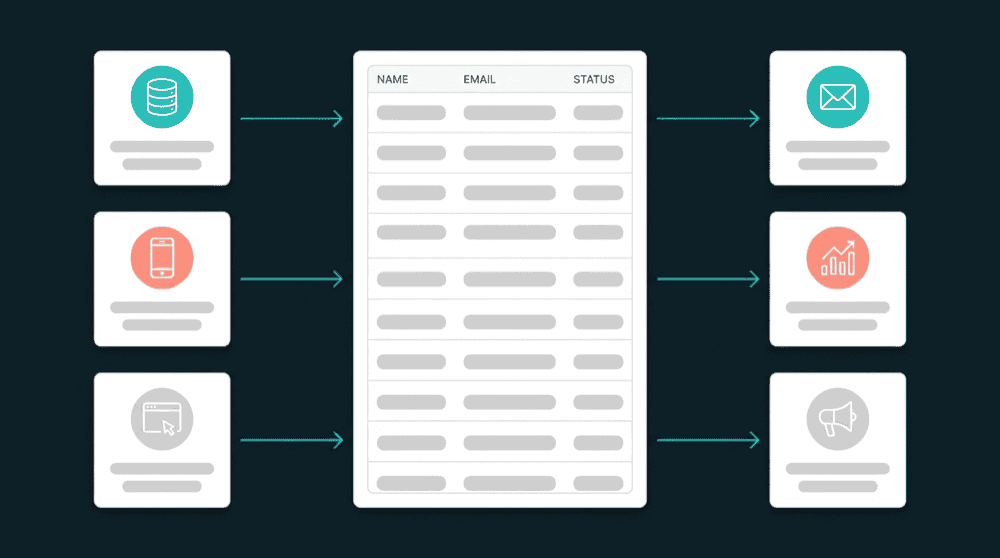
Map Contacts to Contacts, Companies to Companies, Deals to Deals. Select email or domain as the matching key so Oneprofile pairs records correctly across both CRMs.
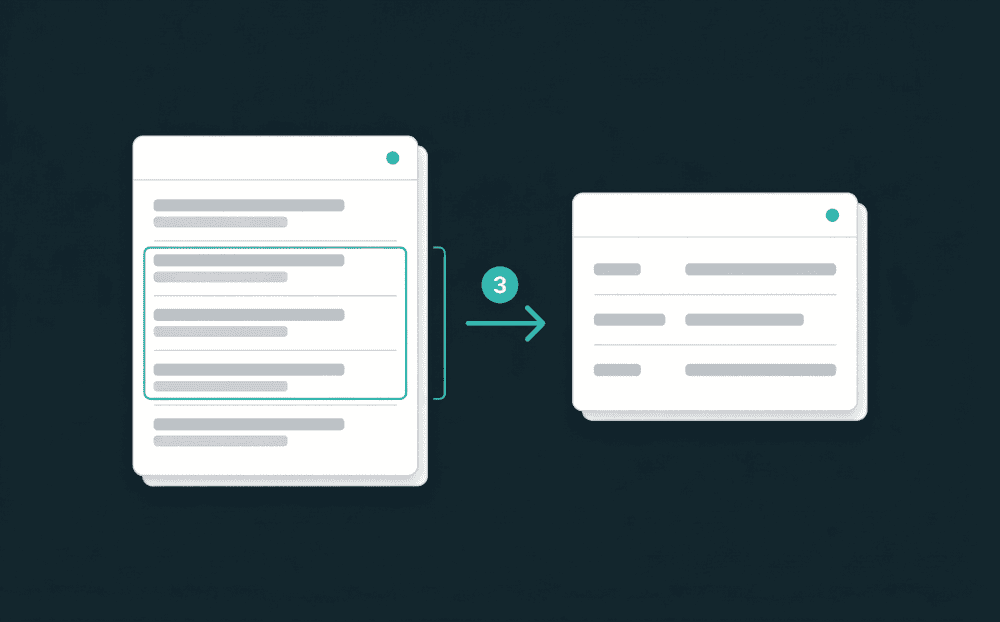
Step 3
Map fields between CRMs
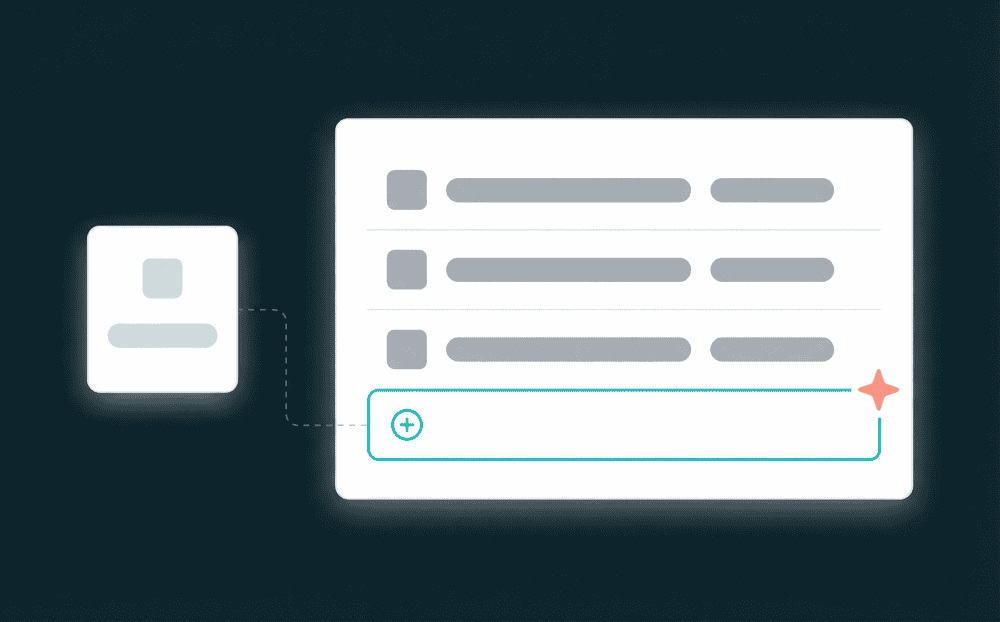
Map first_name, company, deal_stage, lifecycle_stage, and custom fields. Oneprofile creates custom properties in the destination CRM automatically when they don't exist.

Step 4
Run the initial backfill
Start the first sync in Update or Create mode. Oneprofile processes all historical records from the old CRM and writes them to the new one. Review record counts and spot-check key fields.
Step 5
Keep both CRMs in sync, then cut over
Set a 15-minute sync schedule. Both CRMs stay current during the transition. When your team is ready, disconnect the old CRM. Your new CRM is already connected to every other tool.

FAQ
How long does a CRM data migration take?
Will I lose deal history and activity data during migration?
Can I migrate from Salesforce to HubSpot?
What happens to records created in the old CRM during migration?
Do I need to clean my data before migrating?