Helpdesk migration without losing context
Helpdesk migration without losing context
Migrate contacts, companies, conversation tags, and custom attributes from your old support tool to the new one. Oneprofile keeps both helpdesks in sync during the switch.
No credit card required
Free 100k syncs every month
What goes wrong during helpdesk migration
Most helpdesk migrations rely on vendor import wizards that handle contacts but skip custom attributes, company associations, and conversation context. Your agents lose the history they depend on.

Import wizards strip custom attributes and tags
Export contacts from Zendesk, import into Intercom, and custom fields for plan_type, contract_value, and account_tier are gone. The wizard maps name and email. Everything else needs manual recreation.

Company associations break in the new tool
Your old helpdesk links contacts to companies with roles and permissions. Vendor tools import contacts as flat records. Agents open a ticket and can't see which account the person belongs to.

New tickets land in the old tool after cutover
You migrate on Monday, but chat widgets and email forwarding still point to the old helpdesk. New conversations accumulate in the wrong system for days before someone updates every integration.
Connect both helpdesks as source and destination
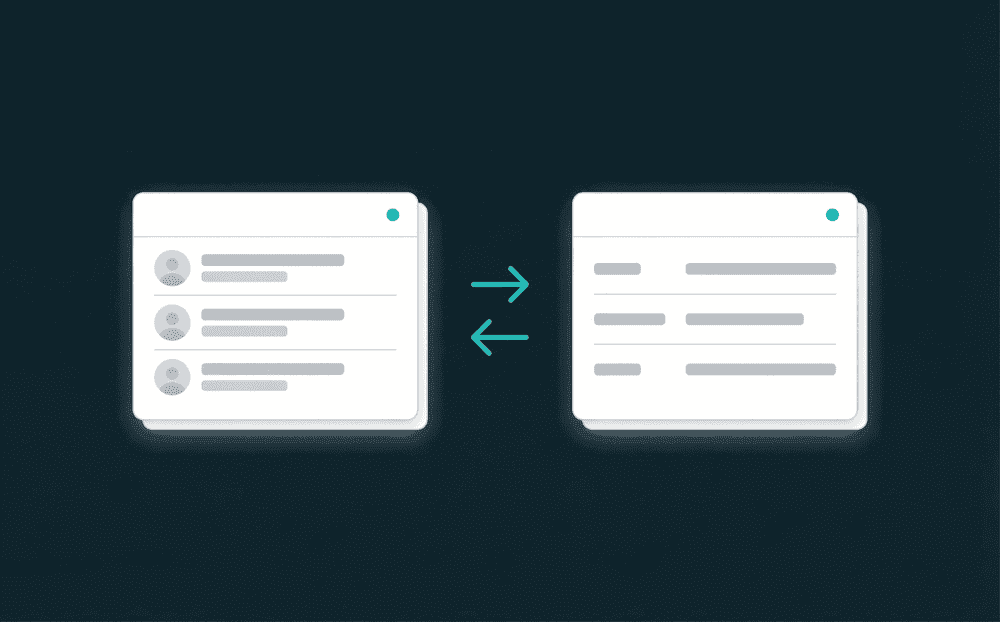
Authenticate your old and new support tools with API keys. Oneprofile treats each helpdesk as both a source and destination. No CSV exports, no vendor migration wizards, no third-party scripts.
Connect both helpdesks as source and destination
Authenticate your old and new support tools with API keys. Oneprofile treats each helpdesk as both a source and destination. No CSV exports, no vendor migration wizards, no third-party scripts.

Backfill your full customer base on day one
The first sync migrates every contact and company from the old helpdesk. Your new support tool starts with complete customer data including custom attributes and company associations.

Run both helpdesks in parallel during transition
Keep both tools synced while your team ramps on the new helpdesk. Contacts created in either system appear in both. Disconnect the old tool when agents are fully transitioned.

Every failed record is captured for review
If a contact fails to migrate due to a field type mismatch or missing required value, it lands in the error queue with full context. Fix the mapping, reprocess, and the record syncs.
Popular helpdesk migration examples
See how teams migrate between support tools and keep the new helpdesk connected to CRM, billing, and product data afterward.


Migrate Zendesk contacts, companies, and custom fields to Intercom with full attribute mapping. Keep both tools synced while your team transitions.
Zendesk
+
Intercom

Move Intercom contacts and companies to Plain with custom attribute mapping. Oneprofile creates new properties in Plain that don't exist yet.
Intercom
+
Plain

Switch from Freshdesk to Intercom with contact field mapping, company associations, and tag migration. Run both tools in parallel during the switch.
Freshdesk
+
Intercom

Migrate Zendesk contacts and custom attributes to Front. Oneprofile backfills your full customer base and keeps both tools synced until cutover.
Zendesk
+
Front

Sync Intercom contacts to HubSpot so your CRM has the latest support context. Keep customer records current across both tools automatically.
Intercom
+
HubSpot
Move Freshdesk contacts and companies to Plain with full field mapping. Agents see complete customer context in the new helpdesk from day one.
Freshdesk
+
Plain
View All Integrations
Connect your tools
Oneprofile supports wide range of integrations across categories

Attio
CRM
Freshdesk
Customer Support
Front
Customer Support
HubSpot
CRM
Intercom
Customer Support

Pipedrive
CRM
Plain
Customer Support

Salesforce
CRM

Stripe
Payments
Zendesk
Customer Support
View All Integrations
How helpdesk migration works with Oneprofile
Five steps from connected helpdesks to fully migrated support data. No CSV files, no code, no vendor migration wizards.
Step 1
Connect your old and new helpdesk
Authenticate both support tools with API keys or OAuth. Oneprofile validates credentials against the live API and discovers available record types: contacts, companies, and tags.
Step 2
Choose record types and matching key
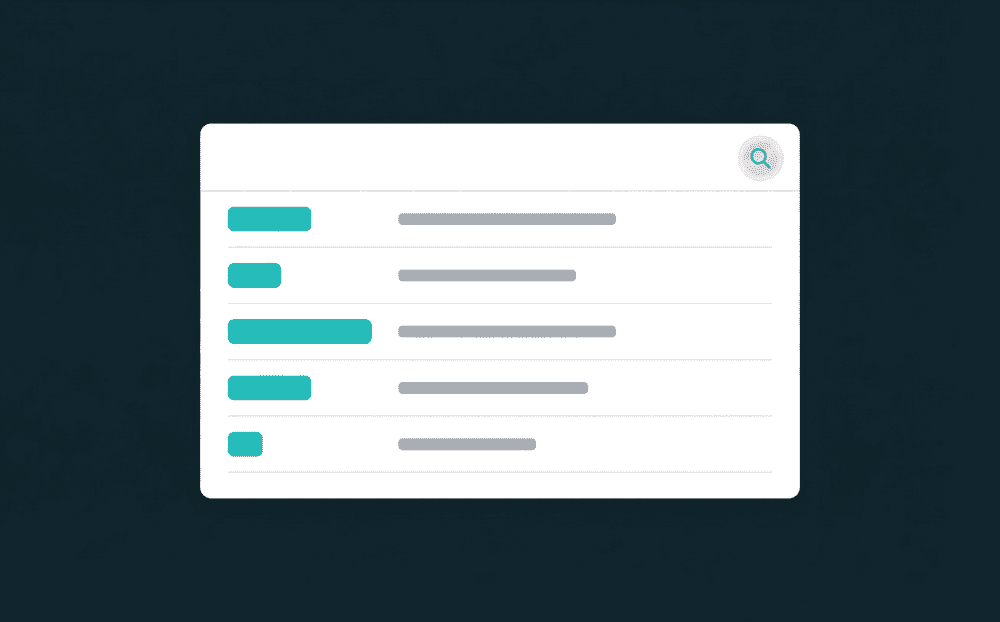
Map Contacts to Contacts and Companies to Companies. Select email or company domain as the matching key so Oneprofile pairs records correctly across both helpdesks.
Step 3
Map fields and custom attributes
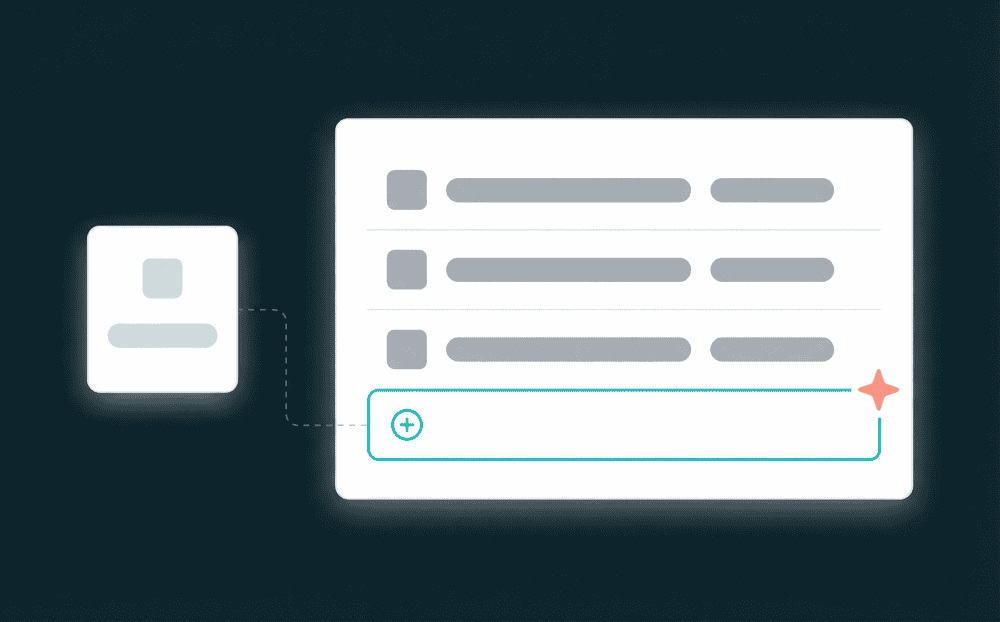
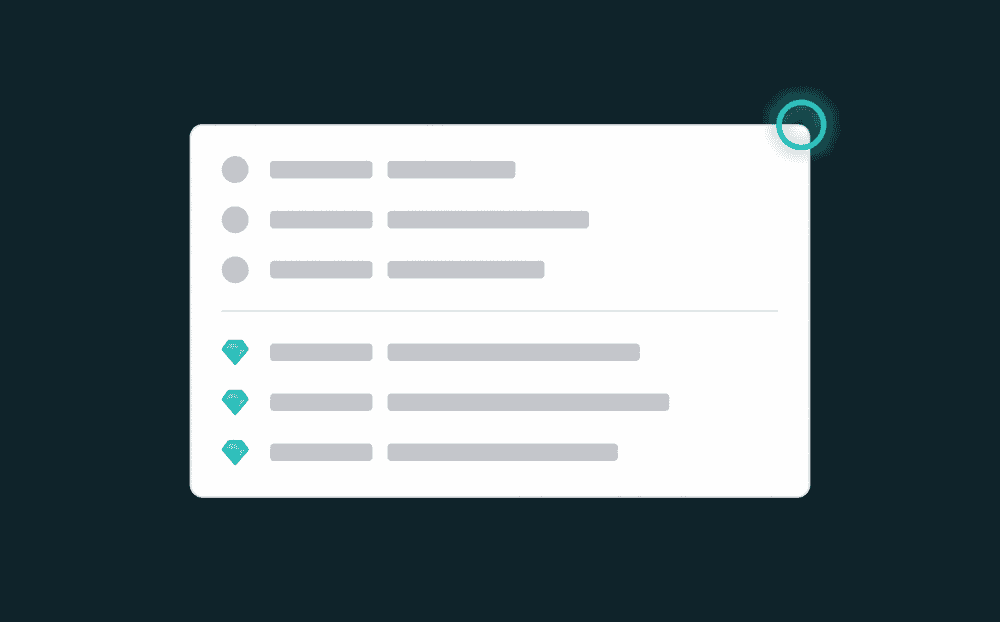
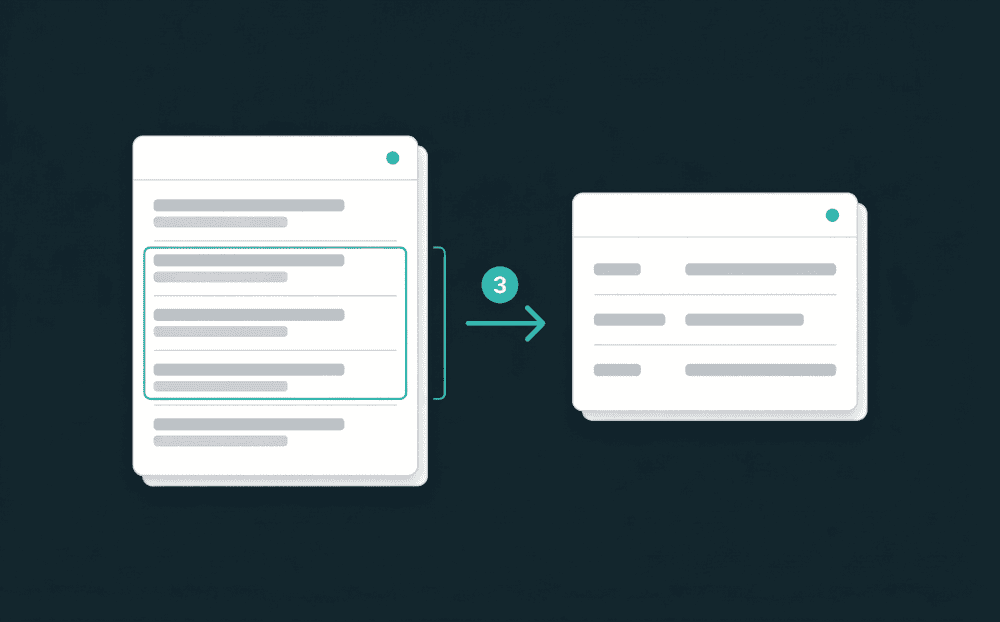
Oneprofile shows fields from both tools side by side. Map name, email, company, tags, and every custom attribute. New properties are created in the destination automatically.
Step 4
Run the initial customer backfill
Start the first sync in Update or Create mode. Oneprofile processes all contacts and companies from the old helpdesk and writes them to the new one. Review record counts and spot-check key accounts.
Step 5
Keep both helpdesks synced, then cut over
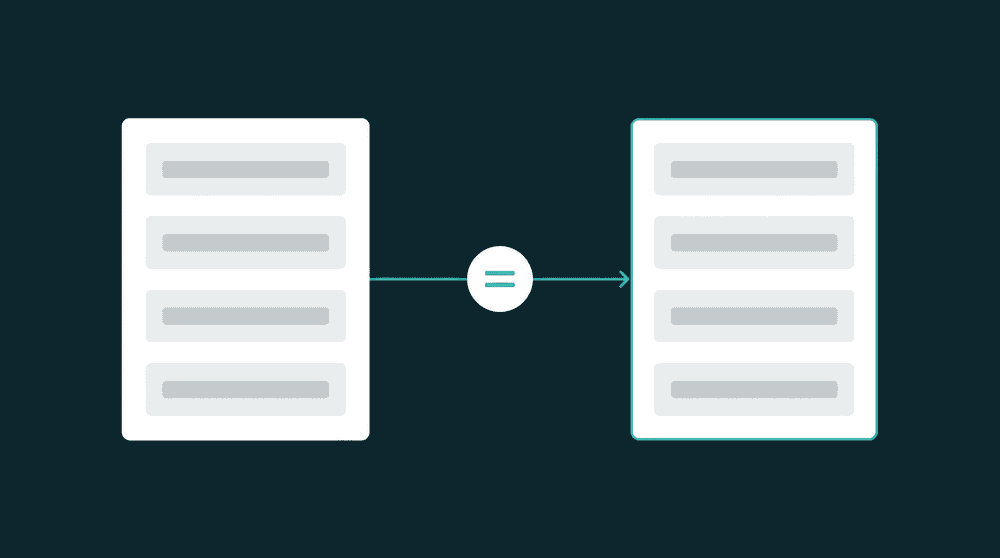
Set a sync schedule. Both tools stay current during the transition period. When your team is ready, disconnect the old helpdesk. The new one stays synced with CRM and billing tools.
FAQ
How long does a helpdesk migration take?
Will I lose custom attributes during helpdesk migration?
Can I migrate from Zendesk to Intercom?
What about conversation history during the switch?
Can I keep both helpdesks running during migration?